Dialog Object Button
Dialog Object Button
The button allows for editing and menu functions. The button can have a label and/or a picture on it.
By pressing a button, the dialog is normally ended (if the "action" property is empty). When an editing function is taking place the same dialog can be called again to represent the changed data.
Hint: It does not require a button in order to check if input is correct or to preallocate data fields. Instead, inputs in the individual dialog fields can be directly reacted to with the "check" property (check logic). For example, when changing a single price or an amount, the overall price can be calculated straight away and displayed.
Note: No parameter is assigned to a button. Instead, the text entered into the "return value" field is transferred to the decision table as the return value of the function f$Dialog, when the button is pressed. The value is branched out and the appropriate logic is executed there.
A button can be set to be inactive i.e. blocked. It can be activated later on if the data necessary for the execution have been entered (see changes of a runtime dialog). The default setting of a button is always "active".
Every dialog mask has to posses at least one button because the dialog can only be ended by the button otherwise (the Windows system button ends the entire logic straight away).
Apart from the general properties General Properties of the Dialog Elements , a button has the following properties:
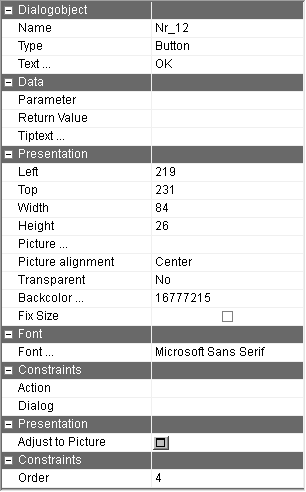
Text … | Labeling, i.e. the text on the button. Alternatively, the button function can also be portrayed by an image. |
Parameter | If the to be displayed image is only determined during runtime or if the image needs to be changed independently of user inputs, the name of the image file can be made available via this parameter. Otherwise, giving a parameter is not necessary. |
Picture | Image of the button (Bitmap). The image file should be in the "Bitmaps" registry in the compound registry. Apart from Bitmaps (*.bmp), *.jpg, *.tif, *.emf and *.wmf are also used as image types. For images in the Bitmaps registry the following rule applies: The image is used if it exists in a sub registry with the name of the set language. If that is not the case, the image of the "Bitmap" registry is used. for example: Image name="bitmaps\end.bmp" If the active language is set to "EN" and "bitmaps\EN\end.bmp" exists, the that is used. |
Transparent | Choosing a transparent presentation of the image. |
Adjust to Picture | The size of the button is adapted to the original size of the Bitmap. |
Fix Size | Usage for the runtime environment. When the size of the dialog changes, the size of the control do not change, if this property is set, |
Picture alignment | If a text and image are available, their arrangement is determined thus |
Action | Any decision tables can be calledon in the action field. |
Return value | The text entered here is used as the return value for the f$Dialog function. That way, the logic "knows" which editing function was triggered. |
Tiptext | Multilingual assignment of a Tiptext. |
.