Dialog Object Image
Dialog Object Image
The image does not just serve to display a graphic, it can execute a decision table via the entry action just like a button can or deliver a return value. The image is always displayed as a background so that Textboxes can also be placed on the image in order to enter a measurement directly onto the appropriate spot on the image for example. The image always has a thin black frame.
The image size is adapted to the size of the dialog object unlike images on buttons. In order to display an image in its original size, the button "adapt an image" can be used which recalculates the size of the dialog object. This function can also be used to reset the original height / width ratio.
Tip: Images can be clicked on to and in doing so trigger an editing function. Use a button with an image for this.
Apart from Bitmaps (*.bmp), *.jpg, *.tif, *.emf and *.wmf are also used as image types.
The images are not firmly copied into the dialog but only the image file is referenced to. By default, a "Bitmaps" registry is offered as a registry below the compound registry. This can be deviated from of course, but the default setting has the advantage of the affiliation of an image to a logic being recognizable.
In addition to the general properties, an image has the following properties:
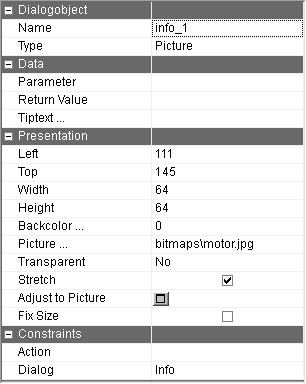
Parameter | If the to be displayed image is only determined during runtime or if the image needs to be changed independently of user inputs, the name of the image file can be made available via this parameter. Otherwise, giving a parameter is not necessary. |
Picture | Name of the image file (Bitmap). The image file should be in the "Bitmaps" registry under the compound registry (see above). The name of the image file can be entered directly or selected via the button "Image". For images in the Bitmpas registry the following rule applies: The image is used if it exists in a sub registry with the name of the set language. If that is not the case, the image of the "Bitmap" registry is used. for example: Image="bitmaps\end.bmp" If the active language is set to "EN" and "bitmaps\EN\end.bmp" exists, then that is used. |
Adjust to picture | The size of the dialog object is adapted to the original size of the Bitmap. The image can be enlarged, shrunk or distorted by changing the size of the dialog object. The image is always displayed fully. Changing the image size or the section can only be done by editing the image using a image processing program - for example Microsoft Paint. |
Transparent | The image will be displayed transparently. The image point on the top left hand side of the image serves as a reference point for the background color. |
Stretch | The image is displayed on the entire available space. Here the image can be distorted. If this option is not ticked the following rule applies: If the image is smaller than the space, then it is centrally displayed in the middle of the space. If the image is larger than the space, then it is appropriately shrunk and displayed in the space. The image is not distorted in the process. |
Fix Size | Usage for the runtime environment. When the size of the dialog changes, the size of the control do not change, if this property is set, |
Action | Any decision tables can be calledon in the action field. |
Return value | The text entered here is used as the return value for the f$Dialog function. That way, the logic "knows" which editing function was triggered. |
Tiptext | Multilingual assignment of a Tiptext. |