Dialog Object Listbox
Dialog Object Listbox
The Listbox presents a list of values to choose from or the display. Normally, it has several rows and is not editable. By clicking on a row, either the text from the Listbox or the running number of the chosen row is assigned to the field parameter depending on the field parameter data type.
A Listbox is used for the following applications:
As a data selection field. Like the Combobox, an element is chosen from a value list (assigned static to the dialog or dynamically via the data source). The difference to the Combobox is that a free value input is not possible and that all (or most of) the alternative values are not visible without having to "open" the list first. The selected alternative is marked. Normally the marked row is presented to the target parameter as a text. If the value stock is fixed, the dialog object alternative button (option field) can be used instead of the Listbox.
If a Listbox needs to contain several columns, a table can also be used to present an entire parameter group.
The Listbox can only be enlarged by whole rows. For that reason, it appears to "jump" when you drag the mouse. If there are more values than rows available in the Listbox during runtime, a vertical scroll bar is automatically added. If a row cannot be displayed entirely, a horizontal scroll bar appears automatically.
If the target parameter has a decimal data type and the value stock is given by a parameter, then the format used for the target parameter in the parameter table is used for the appearance of the values.
In addition to the general properties, a Listbox has the following properties:
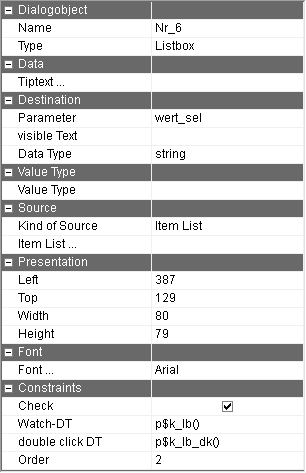
Parameter | Parameter names of the parameter which is assigned to the field (which contains the selection). When executing, if this parameter has a value before the dialog is called, the appropriate row in the Listbox is marked. If no value is selected, the parameter will be in the EMTY state after the mask is completed. Setting and returning the marked row takes place independently of the field data type of the return parameter. If the parameter is a character string, the content of the marked row is returned. The row has to be clear. The data decimal type behaves similarly, the PT formatting is taken into account for the appearance of the value list. The additional language "CODE" is contained in the value list. The value of this column is written onto the parameter in order to achieve a language dependent allocation of the parameter. The visible value of the selected entry is entered into "Parameter" (visible text). However, the represented row in the DT is not always as interesting as the index in the underlying data source, for example when selecting a whole data set. An integer can be used as the return value for this. Instead of the list row, the row index of the data source is then returned. |
visible text | Name of the parameter on which the visible text is written. This parameter does not have to be specified. |
Kind of source | Selecting whether to use a fixed value list or an indexed parameter as a source. |
Sourceparameter | Parameter which contains the value stock of the Listbox. This parameter must be indicated once wither in the parameter group or in the parameter. A further once-indexed parameter can be recorded for the list of visible texts in order to multi-lingually use the list box. In this case, the parameter list (visible text) is displayed but the content of the 1. parameter is returned. Allocating both arrays should be done by the same index, otherwise sensible processing is impossible. If the array with the visible text is larger than the array with the return values, no return value can be determined when choosing such an index. Please note: The choice between the dynamic data source and the value list is determined with the option field on the left. |
Source: visible text | Parameter which contains the text of the Listboxwhich is to be displayed. This parameter has to be indicated just like the source parameter |
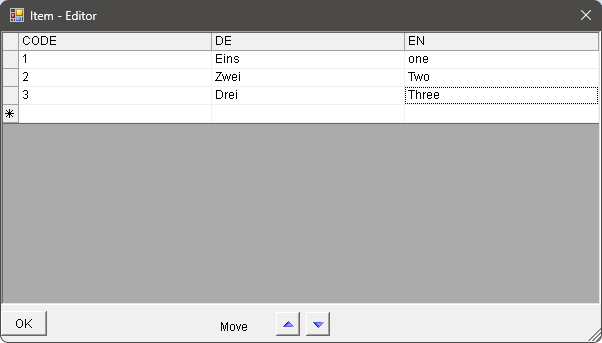
Item list | Fixed value stock which is recorded in the dialog itself. After choosing the button, a window appears in which the value list can be edited. The values are displayed as a table for editing. In every row, a value is recorded in all defined languages of the dialog as well as the CODE language. With the arrow keys next to the "convert" text the Order of rows can be changed. When a row is chosen by selecting the button on the left hand edge, the entire row can be deleted using the delete key. If the same value list is needed more than once, then the data source (see below) should be used so that changed only have to be made once. |
Check | By activating the check changes in the choice of Listbox can be reacted to directly during the execution of the dialog. This can be used for checking the choice as well as to set the proposal value for other dialog fields. This check monitors user inputs in this list box. If the value list needs to be dynamically changed, the check of the field needs to be deactivated whose value change triggers the change of this value list. |
Tiptext | Multilingual assignment of a Tiptext. |
The Listboxhas to be assigned a parameter. Otherwise an error message appears when trying to save the dialog.
Example of a value list: