Notes
Notes
The notes function allows documentation of the decision tables. Notes can be associated with decision tables as a whole or also individual cells (conditions or actions).
Button: 
The documentation is marked in the decision table by a small red dot in the top left of the cell. When the mouse pointer hovers over such a cell for some time, the note is displayed as a tooltip.
After selecting the function, the comment window appears. This window can be expanded as much as needed to be able to enter longer comment lines.
Note: after closing the note window, the changed window size is restored the next time it is opened. However, the window size is not saved, so it will appear in the default size after the next program start.
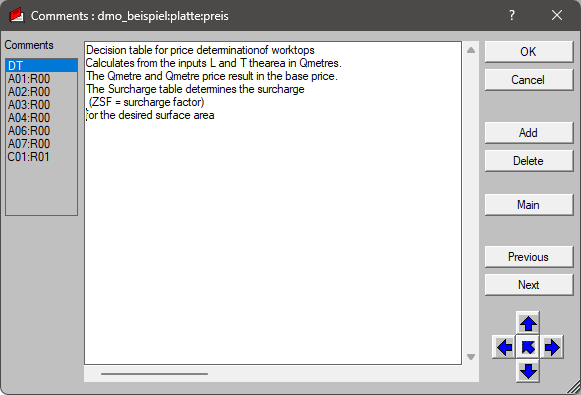
The cell to which the current comment belongs can be specified by selecting from the list on the left side of the window, or "shifted" with the arrow buttons. The active cell is also marked in the DT window.
The "Main note" button activates the entry "DT" in the list. This note is for the decision table itself. When a modified decision table is checked into the version control system, this note is also transferred and displayed in the version control system. Using notes makes it much easier to understand rule-based controls.
Please note:
After entering or changing anything, the "Add" button must be pressed, since the changes are not saved otherwise.
This function can be found in the "Window" menu.