
Search/Replace (Edit Menu)
Search/Replace (Edit Menu)
With the Search and Replace function, any texts can be found or replaced in all decision tables, parameter tables, parameter group tables, and in all dialogs. This, for example, simplifies the renaming of parameters or parameter groups.
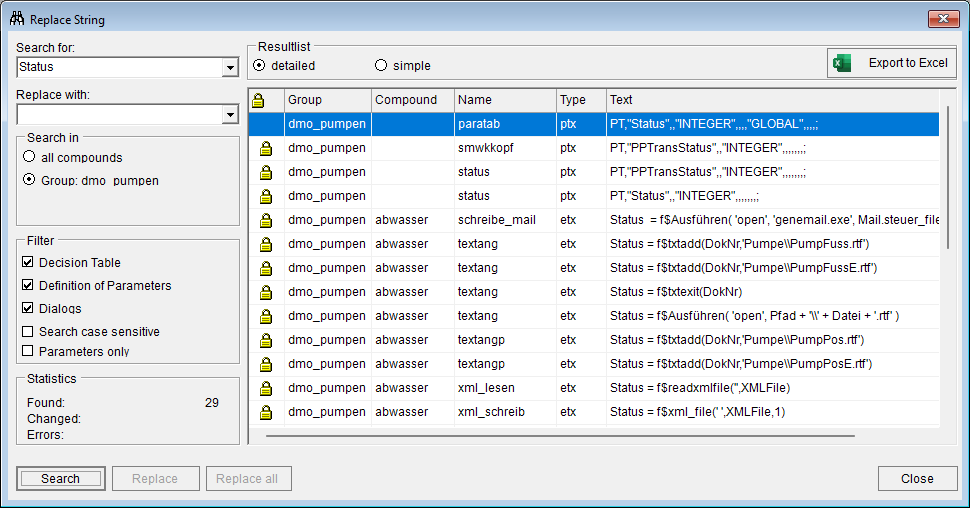
The radio buttons under "Search in" can be used to limit the search to the current compound, the current group, or all groups. The checkboxes under "Filter" can be used to select whether or not decision tables, parameter tables, and dialogs should be searched. Likewise, you can specify whether only parameters or any text should be found. If only parameters are to be searched, the program checks each text for any spaces, comparison operators (= < ...), or similar delimiters before and after the text. However, for example in the case of the search string AnschriftID, the function cannot distinguish whether to interpret it as part of an SQL command, or as the parameter with the same name. Before a replacement is performed, the Find operation should always be used to find the text and the results verified in the result list. The checkbox "Match case" controls whether or not the search should take into account capitalization.
After clicking the "Search" button, the matched texts are displayed in the result list. To improve the clarity, you can switch the result list view to "simple" beforehand. Then, only the first matching result in each file is displayed. When the result list is set to "detailed", all matches are displayed. Before a replacement operation, the result list should be set to "detailed". In the result list, the icon  signifies that the object is write-protected, and that no replacement can be performed in the marked file.
Double clicking a row of the result list, the appropriate file is opened and the cursor is positioned at the location of the match.
If anything was entered into the field "Replace with:", the buttons "Replace" and "Replace All" are enabled.
The "Replace" button replaces the search string only at the displayed location, in the file that the cursor is on in the results list.
If a search string appears often in a decision table, making individual replacements tiresome, either use the Find/Replace function within the decision table, or switch the results list to "simple". Then, all matches in the selected decision table are replaced.
The button "Replace All" replaces the search string in all files in the results list that are not write-protected. The files remain unopened during the operation. If an undesirable replacement is made, it can be undone by simply not saving the file(s).
This function can be found in the "Edit" menu.