
Administration tab
Administration tab
A mentioned above, this tab is only available to users who have administrator rights.
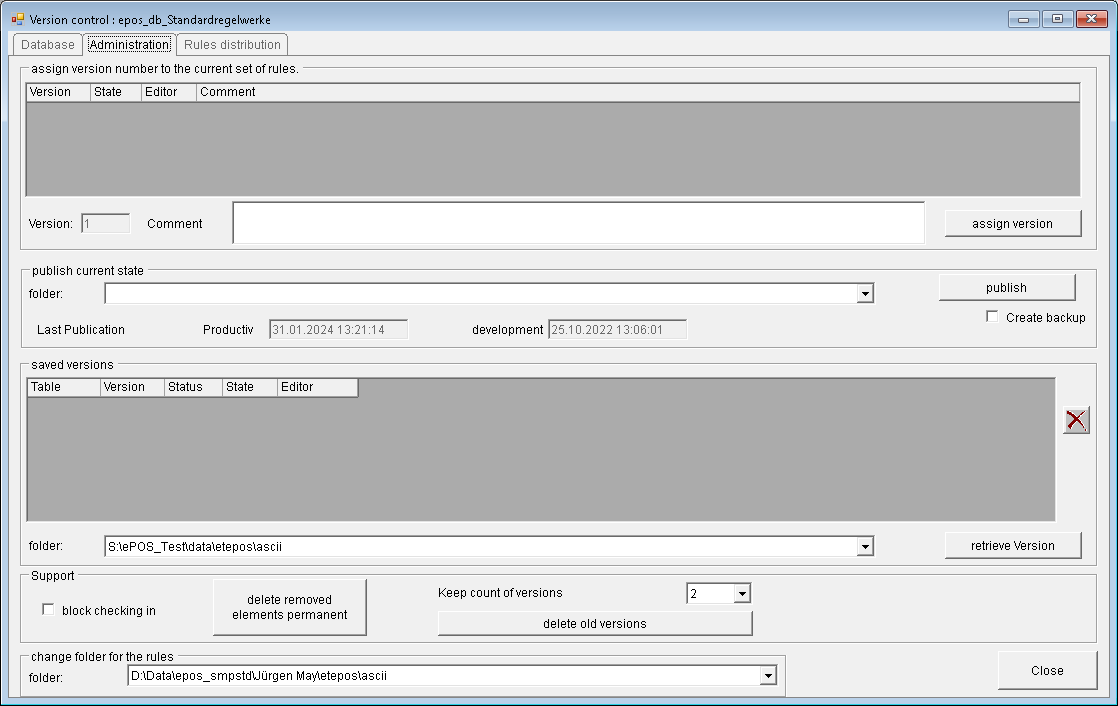
In the section "Allocate a version number to the current controls", the previously created versions of controls are listed. At the bottom of the section, the button "Allocate version" marks the current state of the controls as a version. It is strongly recommended that you add a meaningful comment. This action results in all active elements being marked with the version number. A new database (schema) is created, and all active elements are copied into this database. This action can take about 10-20 seconds per 1000 elements.
In the section "Retrieve current state", the current state of the controls can be retrieved into one of the two directories "Productive controls" or "Development controls". The purpose of this action is a test of the current rule-based controls by users that aren’t working with their individual copy of the controls. Especially when using the controls in SalesManager, this allows the opportunity to test the controls in the development environment before releasing them to the productive environment. SalesManager versions since 9.1R06 include an expansion in the table TM_Employees, in which the folder of the individual controls for the user are assigned. After the test is performed, the controls are set to productive with this button. During retrieval, elements that are marked in the database as deleted are also deleted in the controls. If the check box "Create backup" is checked, the current controls folder is renamed and the controls are retrieved into a new folder.
For this reason, the irreversible deletion of deleted elements should only be performed after the distribution of the controls to the productive directories
In the section "Retrieve current state", the current state of the controls can be retrieved into one of the two directories "Productive controls" or "Development controls". This operation is logged in the Status column. This section also enables versions that are no longer needed to be deleted.
In the section "Management", the following options are available:
Check-in lock. When the check-in lock is active, only users with administrator rights can check in elements. This can prevent controls from being changed during a test phase. The users can continue working during this time, check out controls and edit them. Only checking in controls is prevented.
Irreversible deletion of deleted elements. If parts of controls are deleted in ePOS Management, the affected elements are only marked as deleted in the database. With this button, these elements in the database are irreversibly deleted. This button should therefore be used with caution.
Delete older versions. Through frequently checking in and out, many versions of individual elements can accumulate over time. In order to compress the database, this button can be used to reduce the number of versions. The number of versions to be kept is selected in the combo box above the button.
The section "Select active controls" allows the selection of the controls to be used for the continuing work. Three paths are available: development, production, and the path of the user (working directory). To prevent disorder caused by the switch of the rule path, the username is modified. The name of the user is extended by ,P in the productive environment and ,E in the development environment. This makes it possible to determine the directory in which the checked-out copy is located.