
Breakpoints
Breakpoints
Button:
After this function has been selected, a window to determine the breakpoints will appear.
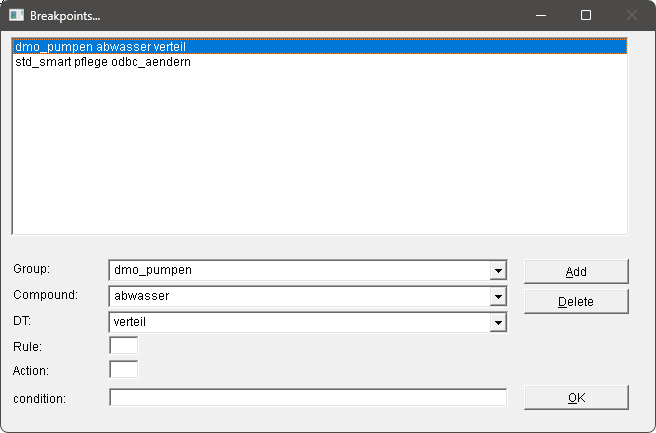
Group, compound and decision table can be selected with the help of comboboxes at the bottom border of the window (the procedure is only required for decision tables in Meta code). After selecting "Add", the breakpoint is included. Any number of breakpoints can be defined. Moreover it is possible to select whether the breakpoint should be set for a specific row (action). This can be further limited by specifying a condition. In this example the breakpoint in the decision table k_bereifung is set to action 4 and condition 5.

Another possibility is the usage of conditions for the breakpoint. To be able to do so, also defining an action is required. The system will stop if the condition is true. All legal ePOS Pro conditions can be used.
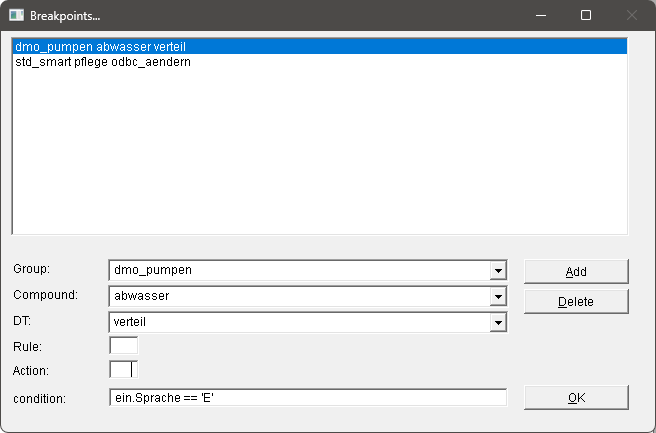
The breakpoint remains active until it is removed again by clicking on the list and clicking the "delete" button.
The "OK" button closes the window again.
With the button  , the execution can be continued until the next breakpoint.
Note:
The button is allocated with Hotkeys. With the alt + Hotkey keys, the buttons can be operated via the keyboard as well. E.g.: Alt+1 operates the button  (Skip the next DT call up).
Breakpoints are automatically saved. When the process is restarted, the breakpoints are active again.