
Database tab
Database tab
The Database tab contains the following options:
Display all elements of a group by clicking the name of the group in the list of groups. This also fills the list of compounds in this group.
Display all elements of a compound by clicking on the name in the list of compounds.
Display all deleted elements by clicking on the button "Deleted elements"
Display all elements that are checked out by clicking on the button "Checked-out elements"
Display all elements that were changed after the specified date. For each user, the database stores when they last updated their controls version. This date is entered into the data field by default. The date is set when the user updates their version, either through the button "Retrieve all" or by filtering the controls by the displayed date and retrieves this list.
Display all elements that were changed since the last released version.
Retrieve all elements of a group. Clicking the "Retrieve group" button causes all elements of the selected group to be retrieved. If no group is selected, this button has no effect.
Retrieve all elements of a compound. Clicking the "Retrieve compound" button causes all elements of the selected compound to be retrieved. If no group is selected, this button has no effect.
Retrieve all elements of the database. This may take some time, depending on the number of elements. In a typical environment, about 5-10 seconds per 1000 elements.
Import all groups. Upon clicking this button, all decision tables, dialogs, etc. which differ from the files saved in the database are entered into the database. This button should only be used if controls are copied into the current directory.
In the currently displayed list, the following context menu can be opened by clicking the right mouse button:
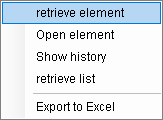
The following actions can be performed:
Retrieve the elements of the active row
Display the history of the element of the active row
Retrieve all elements in the list
Export the list to an Excel worksheet. The name and location of the Excel file can be specified. Afterwards, the worksheet is opened.
Double-clicking a row of the list also displays the history of the element. See also the menu entry "Show history" in the Explorer